
In 2026, if you'd like to learn how to mod Honkai Star Rail, the good news is the process is simple, as long as you know the workflow. There has been a lot of activity surrounding the modding scene in Honkai: Star Rail developing, particularly in the area of visual customizations. Most modding activity which is being done within the game is cosmetic modding, e.g., custom skins, mesh swaps, texture changes, and shader fixes. This guide will take you through setting everything up, what tools people use in HSR 4.1, where the risks are and how to avoid the common mistakes that will get your client broken.
Basics of Modding Honkai Star Rail
The first thing you should know is that in the HSR community, cosmetic mods are generally the only category that is considered to be low risk. This means anything that falls under the realm of custom our fit, modified character models, changed textures, or fixed shaders is considered low risk. As soon as anything modded that affects damage/stats/gacha/automating resources or anything server related happens, you no longer have a "low risk" mod and are in a position to get yourself banned. So think of the "low risk" area as an area that cannot and does not have anything modded that will get you in trouble.
This guide will focus completely on modding for PC. When modding through mobile devices, things are a lot more difficult. The visibility of HoYoverse’s anti-cheat system is a lot more robust for both Android and iOS than that for PC and the "modded" APKsn that many people download from the web (those that advertise the ability to have "unlimited everything") are from a completely different world than "normal" cosmetic mods, and should never be considered anything but a red flag.
The primary website used for downloading mods for Honkai: Star Rail mods version 4.1 is still GameBanana. The majority of mods for skins are found in the Character > Skins folder where developers give credit to the tools used to create the mod (usually either Blender or Paint.net) and the particular version of the game that the mod was intended for. Before you download an older mod from this location, you need to check the last upload or update date on the mod because older mods may no longer work with the game due to the most current version of HSR now containing a different asset package.
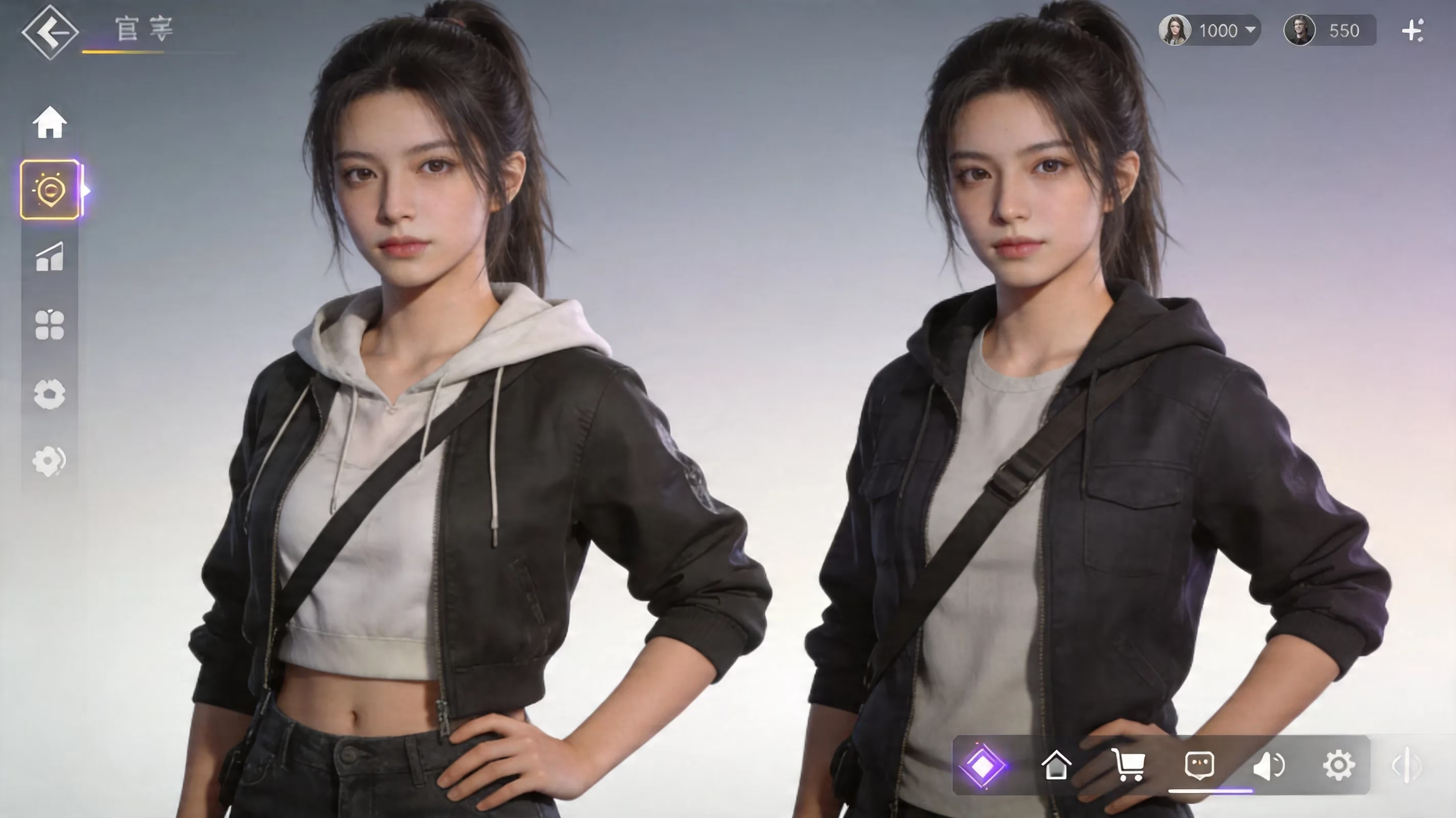
Now for the loaders, the most current standard is the XXMI Launcher which is a successor to the older 3DMigoto-based loader, it has added extra features that allow for the injection of DLL and to route fixes for shaders for HSR. In addition to that, the SRMI toolset (Star Rail Model Importer) is responsible for handling mod layers specific to HSR. The largest contributing factor in mods failing is an incompatible extractor loader, so keeping these in sync with the current game patch is much more critical than many players realize.
Step by Step for Installing Mods In Honkai Star Rail
The first thing that you need to do before you install any mods is create a clean backup of the entire game client folder. It is very important that you do this first! The patching process for HSR may sometimes overwrite shader cache files and/or packaged assets without notice, so having a backup that is clean will spare you from having to redownload large portions of the game from the official launcher because you unfortunately had to do a restore.
The specific order in which you install mods also matters significantly. The cleanest order to install in would be:
-
Verify and apply the most current game client patching
-
Install your current version of the loader
-
Lastly, put your mod files in the appropriate location
If you install backwards (i.e. dropping your mod files into their correct location before having confirmed the extractor loader is functioning correctly) you may find that troubleshooting quickly becomes quite irritating. A dependency could lead to a series of issues that were originally caused by one dependency, causing three separate issues at the same time.
When you have deployed your loader you will be working with your "Mods" directory which will typically be located right next to your loader executable, rather than inside the actual install directory of HSR. This is where you store all of your .ini configuration files, mesh data, and texture files. You should not put mod files into the native folder of the game, as integrity checks are more likely to catch mod files that are not located in the correct folder.
To perform your first test launch, keep it simple: you should only enable one mod, and it should be confirmed to work with the current version of your loader. If you have injected your loader correctly and your custom skin shows up correctly, your setup is healthy. If your game crashes before reaching the title screen, the usual reasons include an loader/client version mismatch, missing shader fix files or your antivirus program quarantined the loader DLL.
Mod Setup Sequence
Start by downloading files from only "Trusted Sources"(ex. GameBanana or other community hubs with a long-standing history). After you extract your mod archive, you need to ensure the folder structure is the same as what your loader expects, typically with a mod-named folders containing your .ini configuration and all of the mesh buffers/texture files, stored in the Mods directory.
Another aspect that many people overlook is that many character skins include a "ShaderFixes" file, usually as a .txt file, which should be placed within the dedicated ShaderFixes folder inside the loader directory. Some mods (for example, certain sparkle skin releases on GameBanana) mention this directly since without them, you can render incorrectly, such as hair outlines, seams, or edge lighting.
It's very important to match the versions!! Every time you create an HSR patch, you will change the hashes that 3D Migoto type loaders use to hook into the correct draw calls. Therefore, a mod that was created for 4.0 can technically still load on 4.1; however, what you will see is generally flickering geometry, broken textures, or the model completely mangled. In general, recently updated mod pages are significantly safer than old uploads that have not been updated for several months.
How to Install Character Skin Mods
Most character skin mods have two parts to them: a mesh package and an associated one or more texture packages. The mesh file will have the edited 3D model, whereas the texture files will include things like diffuse maps, normals, and sometimes specular details. If you do not have the texture files, the model will be loaded; however, it will likely appear as flat and gray, black, or broken.
Some of these also will have toggle keys. Toggle keys are your keyboard shortcuts that are defined in your mod's .ini file and will allow you to switch between variants or toggle specific items on and off, such as accessories or alternate hair colour, or additional outfit pieces. The actual toggle keys will differ between mods, so be sure to check the GameBanana description before you load and wonder why your character skin mod isn't looking the way you expected. Once you finish preparing everything, with the shader fix in the right location, you should use the game loader to start the game instead of starting HoYoPlay normally. After this, you need to load into a battle or map where your character is visible to check if their skin is being rendered correctly. If the character is either completely invisible, stuck in a T-pose, or only partially visible, then the hashes for the mods’ .ini files are likely to be incorrect for the current patch.
Ban Risks for Mods on Honkai Star Rail and Mod Safety
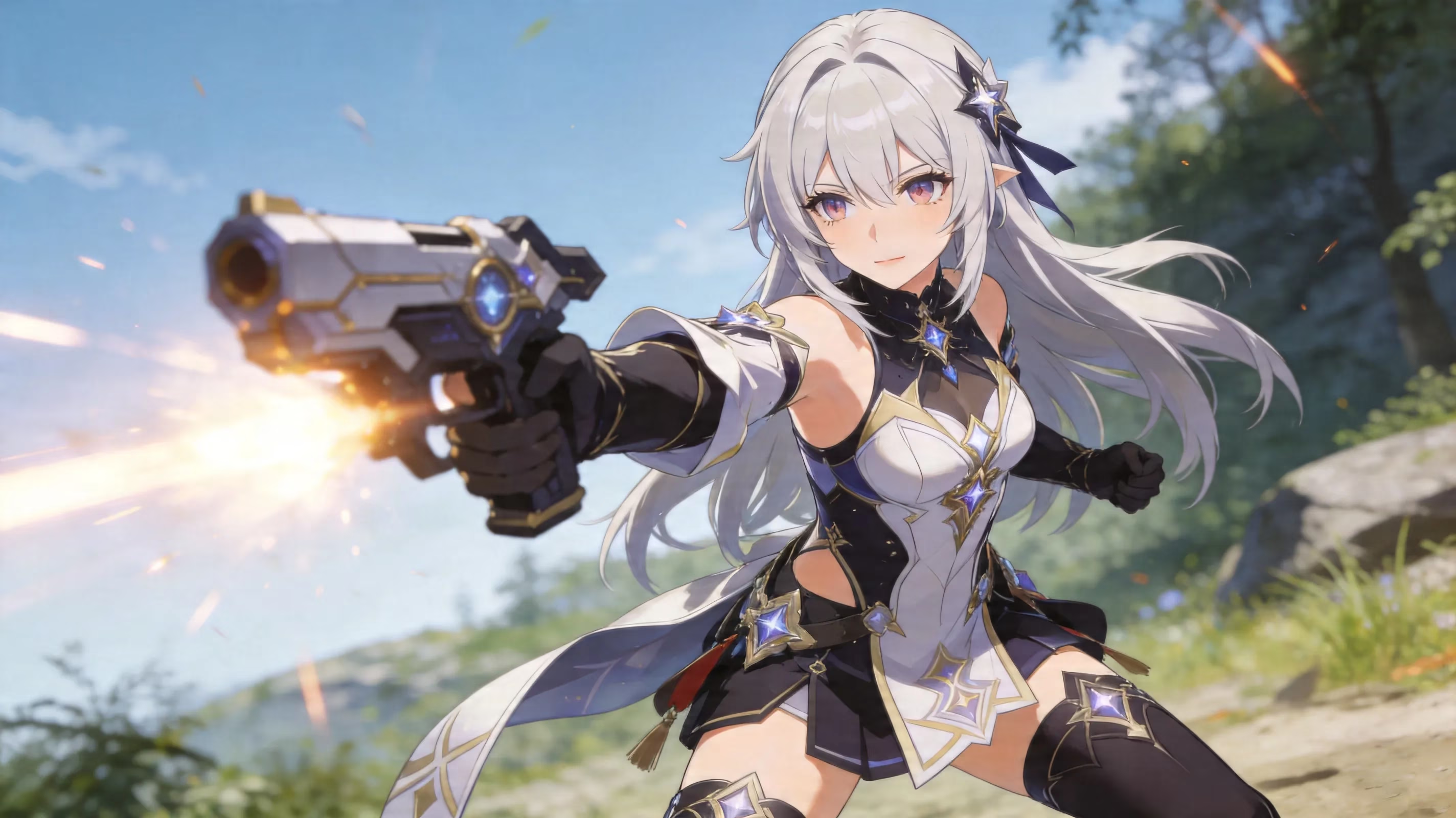
HoYoverse has taken a very clear stand against all forms of cheating in general; this includes the use of third-party programs to alter game data or game play using macros, as per their Terms of Service. On April 15, 2026, the Honkai: Star Rail team posted a notice about a ban wave for anyone who is using cheats or automations, where people can receive permanent or temporary bans, but they do not specifically mention cosmetic skins in the notice. The wording in this notice is broad enough to still leave a lot of room for interpretation, meaning that technically modding cosmetics are in a grey area.
Even though there is a lot of grey area with regards to cosmetic mods, many long-time players who have participated in both Genshin Impact and Honkai: Star Rail modding communities agree that there is a practical distinction between cosmetic edits and gameplay-affecting mods. When there are only cosmetic edits happening such as swapping skins or changing models that do not communicate with the server the player will most likely not receive a ban if they are used correctly. In contrast, when a mod is able to affect a player's stats, automate a player's input, or inject materials, they will likely be treated as a high-risk mods and the player will be at a significant risk of receiving either a temporary or a permanent ban. The following is the typical 2026 community risk snapshot.
| Cast Mod | Ex. | Risk Assessment |
|---|---|---|
| Character Skins (mesh or texture swap) | Custom Sparkle Outfit | Low (only client) |
| Shader Fix | Outline Text file Fix | Low (render assist only) |
| FPS Unlocker | Frame Rate Override Loader | Medium (Render Pipeline) |
| Stat Modifier | Higher Damage Values | High (detectable on server) |
| Private Server Client | APK with Unbased (Virtual Currency) | Very High (Will result in Account Termination) |
To be frank, private server APKs are NOT normal mod. If you have seen any mod you can "unlimited" the use of Stellar Jade, or Premium Currency, or you're using a construction mod to access information in the private server environment, you're in fact using a modified client - associated with a private server infrastructure - and this behavior can lead to a permanent ban or legal issues as a result of HoYoverse's licensing agreements.
Another, lesser-known, level of risk that players tend to overlook on a regular basis is UID Exposure. If you are posting screenshots or videos of your modded client, make sure that your in-game UID number is not showing; especially on public forms of media and in HoYoverse owned community spaces. You'll make it much easier for someone else to get noticed just by exposing the UID number. It has become habitual for the community to crop or blur the UID number from your images.
Honkai Star Rail Mod Fixes
The most common issue reported about patches is Broken Textures. Some things you may see are missing diffuse maps, stretched UVs, crooked Normas or surfaces that have no relationship to the model. A hash mismatch between your mod's four .ini's asset IDs and your current patch's four asset IDs is usually the cause of this issue. Once you identify this will be a longer term issue, you typically have two options to resolve it: Wait for the mod's author to revisit and make the patch compatible, or if you've become familiar with using SRMI tools, manually update the hash values yourself.
Another way that you can experience a patch mismatch is when the loader is designed for a previous version and your mod is not. This can cause your game to crash at HoYoPlay's splash screen, to loop endlessly while trying to log in, or to simply crash to the desktop (CTD) immediately after the disclaimer overlay disappears. If your game crashes or ramps up to the previous version again before allowing you to log in, the problem will not lie with the mod itself; the root of the problem will be the out of sync loader and client.
If you see visual bugs prior to any mod being installed, check the option for Verify File Integrity within HoYoPlay first. This will verify the local files against the official manifest and re-download any missing or corrupt files. In addition, this is a great idea to do after an unexpected crash or to perform before the start of a new mod session, particularly after a major patch.
One issue that can be overlooked by a lot of people is conflicts between drivers and overlays. If a GPU driver or overlay from either Discord, NVIDIA GeForce Experience, or MSI Afterburner updates around the same time as a major HSR patch, it can result in rendering issues. If any of the above situations happen to you and you have determined that it could be due to an overlay conflict, disabling overlays is likely the easiest first step you can take to test.
Recovering from a Visual Bug
If you have multiple mods running and suddenly one of them stops working, the best way to determine which mod is responsible for the visual bug is through batch disabling. Remove every mod folder from the active Mods folder, start a clean game, then check if that fixed the issue; if so, add back the mods one by one until the broken asset appears.
Rebuilding your shader cache is another way to try to resolve your issue, especially after updating a game or using a different loader. This cache will be located inside your loader's folder structure, and deleting this contents will force it to recreate when the game is started next, potentially fixing persistent rendering artifacts that remain after the mods that caused them have been removed.
If all of that fails, get back to the vanilla files using your official launcher’s verify/repair function. Since your progress and save data are stored server-side, this won’t affect your Trailblazer progress. This is a great way to reset your game if it gets too messy to troubleshoot.
Best Mods and Tools for Honkai Star Rail
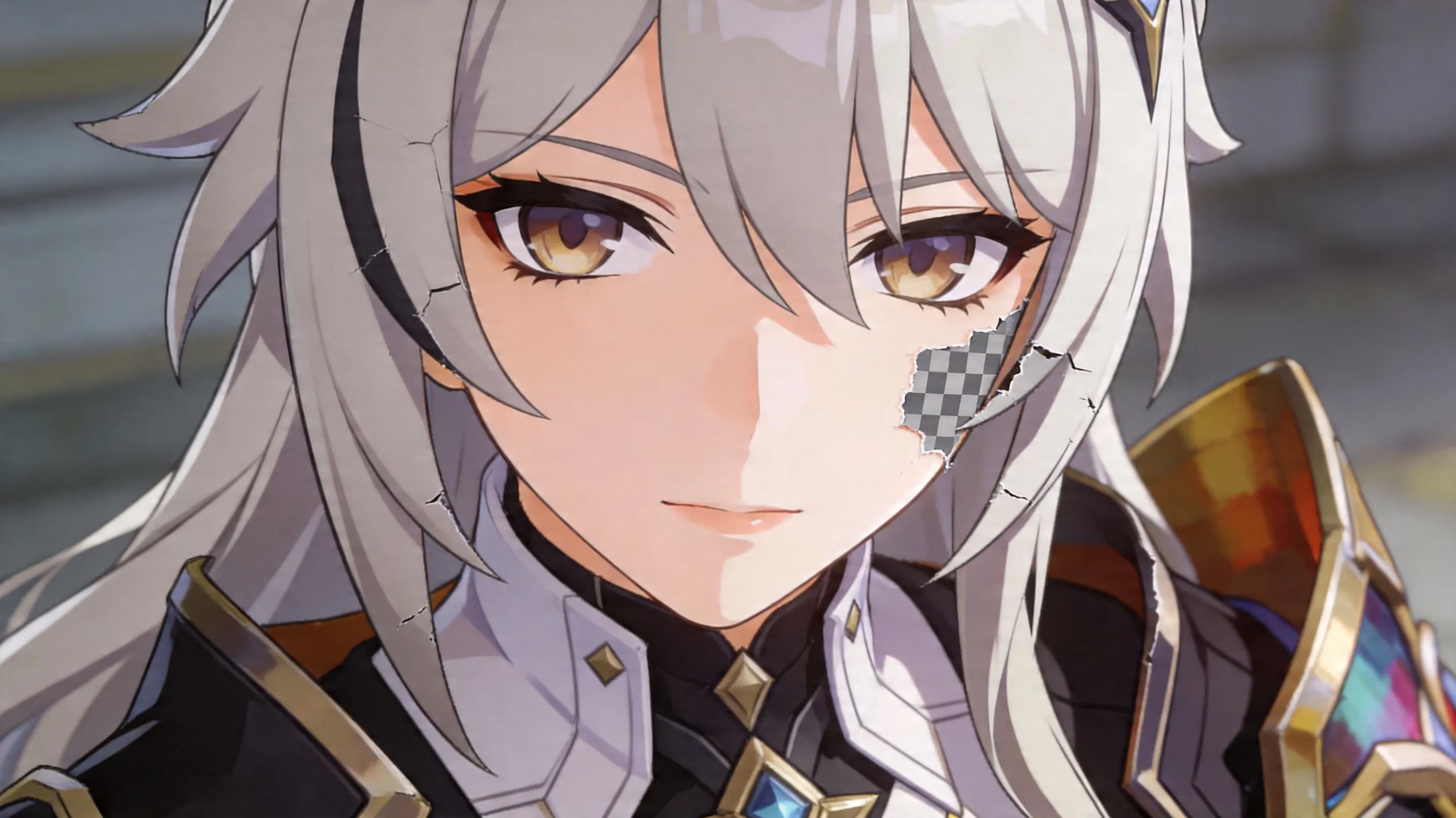
On the content side of things, the most popular mods for the game remain character skin mods. GameBanana contains many custom skins for many characters including Sparkle, Firefly, Robin and the new 4.x roster characters; the quality has also improved significantly since the early days of HSR modding. Many modders now create their 3D models with Blender and create their textures with Paint.NET or Adobe Substance, which definitely shows the advancement in the quality of skin mods created for HSR. In 2026, the most common tool for modding is still the XXMI Launcher paired with the SRMI. It also provides a more streamlined experience that is more organized than using raw 3DMigoto, which also has several benefits when maintaining mods by using either a community-supported auto-hash updater or manual hash updater. If you desire simple user-friendly tools for modding, the Asta mod manager provides a graphical interface GUI method of mod toggling that does not require you to move files manually.
Shader utilities may be small, but they are very critical to modding, as they provide fixes for hair outline bugs and rim lighting problems associated with specific mods, and they help with correcting transparency sorting issues for skins that make them look haphazard. Shader utilities also assist with fine-tuning skins to a level that you cannot even see, but they do perform incredibly well relative to the size.
The most used 2026 HSR Modding Community Hubs are HONKAI: STAR RAIL at GameBanana.com, the Anime Game Modding Group (AGMG) on Discord, and the various HSR Modding thread on Reddit. All of these sites will typically have a compatibility tracker posted that will be extremely helpful to you during those first few days after patch release when you are trying to determine all of the currently used mods that will work, or will not work with the current patch prior to downloading anything from the site.
Summary
When you are learning how to mod Honkai Star Rail safely, it boils down to having consistent habits; will you use only cosmetic mods? Will you maintain your mod files in the Mod's directory next to your launcher and not in the game's install location? Will all of your mod files and your loading software be updated to the same version to match the normal patching schedules and to stay safe? As long as you stay in control of your actions regarding creating loadable files for cosmetic modding; you can expect there to be very low risk of creating any purely Cosmetic Mods or Texture Mods based on community expectations. Conversely, based on community expectations, you will be taking a tremendous risk if you create, or are using mod tools that affect gameplay values, economics, or alternate server connections.
The following are checklists that you should always utilize before you complete your modding on HSR.
-
Ensure that your Loadable Files and Game Client are on the same version prior to executing either.
-
Maintain all of your mod files adjacent to your Loader and not within the Game's Install Directory.
-
Hide your User Identity in screenshots and videos of your loaded client.
-
Never use any tool or mod that makes these types of modifications;
-
ALWAYS update your file verification results after every patch of major release before reloading.
Be very, very careful on Patch Day. Patch Day can be a huge setback for modding HSR because of the number of Mods that will break from just a single patch. Executing your client within an Older Loader version will result in crashes. By taking a moment to wait at least 24-48 to have your Loader confirmed as updated by the community or if any Mods have had their file hashes updated by their creators; you should be able to continue having fun using Modding HSR by making your Trailblazers unique.
Comments